
Team Members
Give colleagues their own login to your project, with a role for what they can see and change.
Invite colleagues so they can work with your project's access tokens, usage and invoices without sharing your login. Each person signs in with their own email and only sees your project, never your plan, subscription or card.
Teams are available on all paid plans. A project can have up to 5 team members, including pending invites.
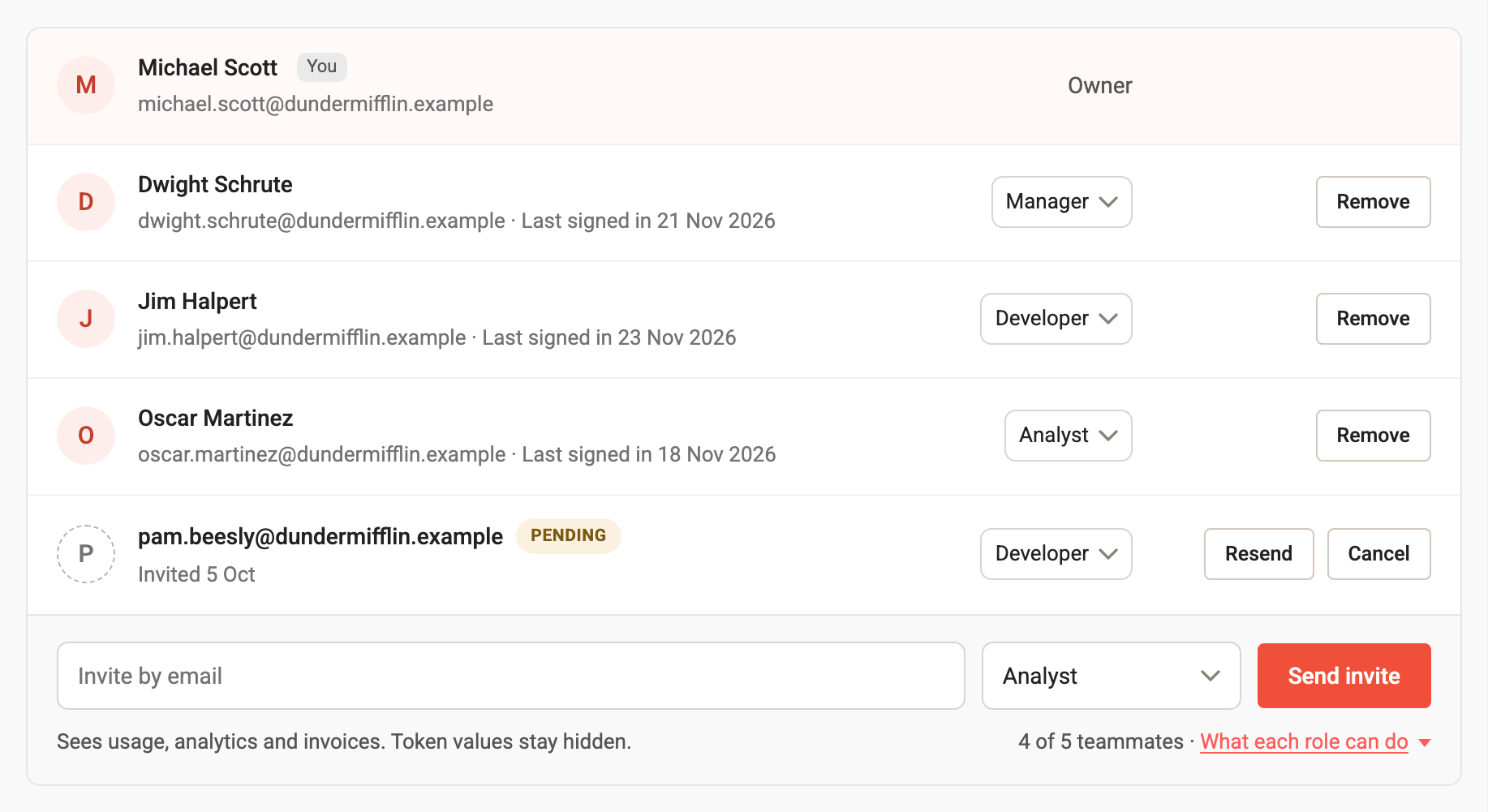
Roles
Every team member has one role. You can change it at any time from the role menu on their row; the change applies the next time they load a page.
| Analyst | Developer | Manager | Owner | |
|---|---|---|---|---|
| Usage and analytics | ✓ | ✓ | ✓ | ✓ |
| Access tokens: view, create, edit and revoke | ✓ | ✓ | ✓ | |
| Invoices | ✓ | ✓ | ✓ | |
| Invite and remove Analysts and Developers | ✓ | ✓ | ||
| Invite and remove Managers | ✓ | |||
| Plan, subscription and payment card | ✓ |
Analysts see token labels and masked values, never a full token. Anyone who can see a token can use it, so there is no read-only token role.
Invite someone
- On your User Dashboard, open Team.
- Enter their email address, choose a role and click Send invite. Each role in the menu says what it can do.
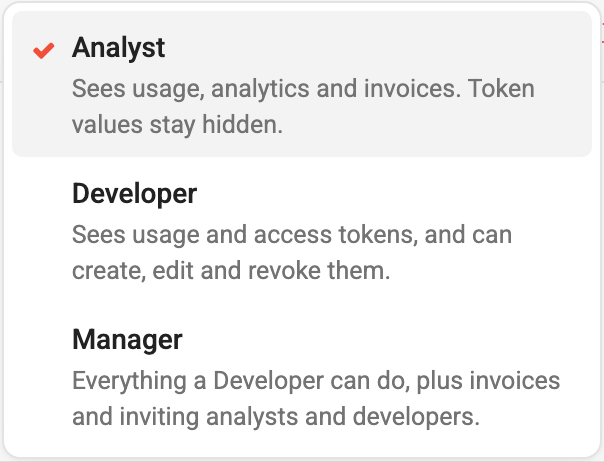
They get an email with a link to join. The link expires after 3 days; you can Resend or Cancel a pending invite from its row.
Join a team
Open the link in the invite email and click Join. If you don't have a LocationIQ account with that email yet, joining creates a free one for you, and you'll use it to sign in from then on.
If you already have an account, sign in as usual (email link, password or Google) after joining. Use the email address the invite was sent to.
Switch between projects
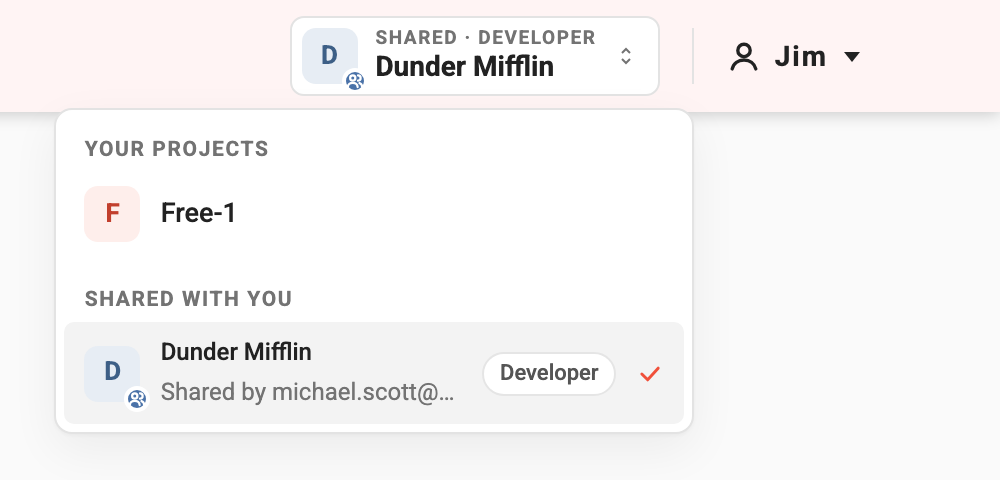
Once you're on a team, the project switcher at the top of the dashboard lists your own projects and the ones shared with you, with your role on each.
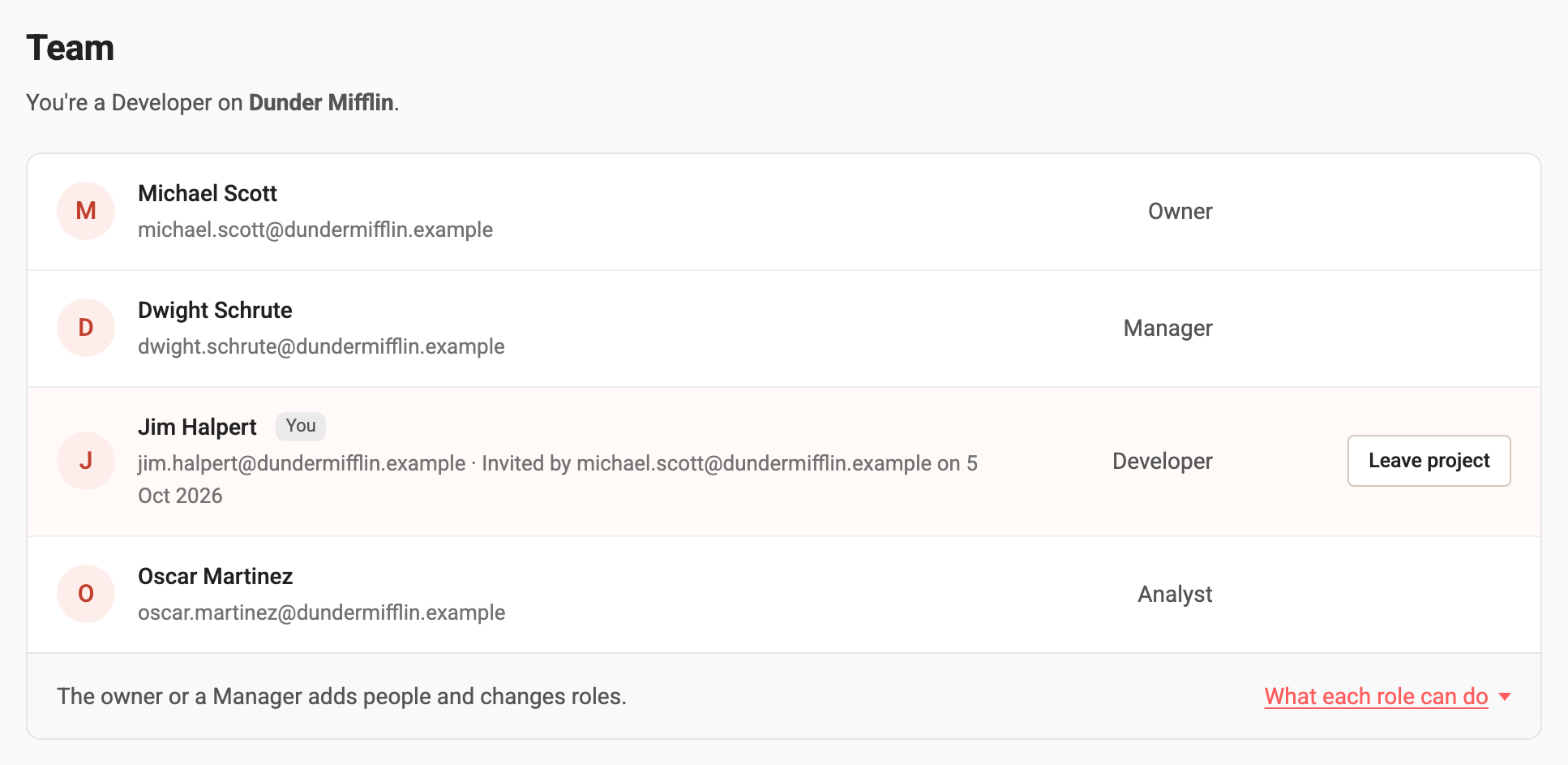
Team members see who else is on the team in the Team tab. Only the owner and Managers see pending invites and when people last signed in.
Remove someone or leave
- The owner and Managers remove people with Remove on their row. Managers can't remove other Managers.
- Team members leave a project with Leave project on their own row. Their own account stays.
Removing someone ends their dashboard access only. Access tokens they could see keep working until you revoke them, so revoke and replace any token a removed Developer or Manager might have copied.
Emails to the owner
The owner gets an email when:
- someone joins the team;
- a Manager invites or removes someone, or cancels an invite;
- someone leaves the team;
- anyone, the owner included, revokes an access token;
- a team member changes the email address they sign in with.
If you change plans
If your project moves to a plan without teams, the team is paused: members can't open the project and their invite links stop working. You can still remove people. When you upgrade again, everyone gets their access back with the same role.